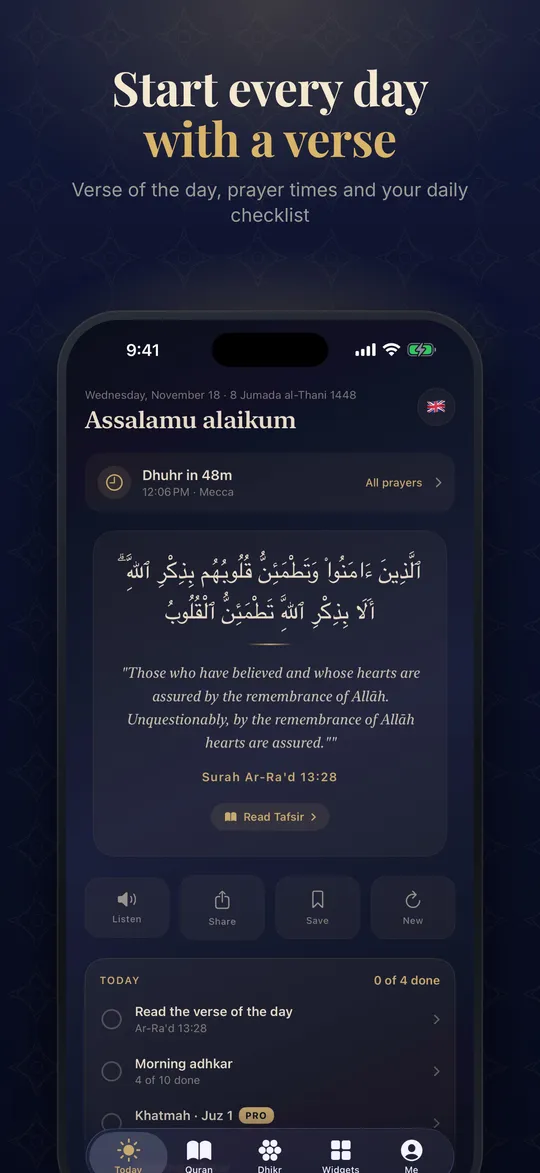
 Ayah Widget
You look at your Lock Screen dozens of times a day. With a few widgets and the right wallpaper, each glance can remind you of Allah: a verse, the next prayer, today's Hijri date. Here are 7 Islamic Lock Screen ideas for iPhone, with how to set up each one.
الَّذِينَ آمَنُوا وَتَطْمَئِنُّ قُلُوبُهُمْ بِذِكْرِ اللَّهِ ۗ أَلَا بِذِكْرِ اللَّهِ تَطْمَئِنُّ الْقُلُوبُ
Who have believed and whose hearts have rest in the remembrance of Allah. Verily in the remembrance of Allah do hearts find rest
First: how to edit your Lock Screen
- Unlock your iPhone with Face ID or Touch ID, but stay on the Lock Screen.
- Touch and hold the Lock Screen, then tap Customize and choose Lock Screen.
- Tap the widget area below the clock to add widgets, or the date line above the clock for one small text widget.
- Tap Done.
The widget area holds up to four circular widgets, two rectangular ones, or one rectangular and two circular. Lock Screen widgets need iOS 16 or later.
1. The daily verse Lock Screen
The simplest and most beautiful idea: one Quran verse under your clock that changes every day.
- Widget area: Ayah Widget's Daily Ayah in the rectangular size.
- Wallpaper: a dark, calm photo so the text is easy to read.
- Tip: choose a mood in the app (hope, patience, gratitude…) to get verses that fit what you need.
Full steps: How to add a Quran verse to your iPhone Lock Screen.
2. The prayer Lock Screen
Never miss a prayer time again: the next prayer and a live countdown, right under the clock.
- Widget area: Next Prayer (rectangular), plus the Daily Ayah or Reading Streak in circular size.
- Date line: Hijri Date, so you see both calendars at once.
Full steps: How to add prayer times to your iPhone Lock Screen.
3. The minimal Hijri Lock Screen
For people who like a clean screen: no widgets below the clock, just the Hijri date above it.
- Date line: Ayah Widget's Hijri Date in the inline size.
- Clock: tap the clock and pick a thin font and a soft colour.
- Wallpaper: a plain colour or a gradient.
Prefer the built-in option? See how to add the Hijri date to your iPhone.
4. Arabic numerals on the clock
A small change that makes a big difference: show the time in Arabic numerals (٠١٢٣٤٥٦٧٨٩).
- While customizing the Lock Screen, tap the clock.
- Tap the globe button in the font options.
- Choose Arabic Indic.
5. The Ramadan Lock Screen
Make a second Lock Screen just for the season: a countdown to Ramadan before it starts, and a verse each day during it.
- Widget area: Ramadan Countdown (circular or rectangular) and Next Prayer, which counts down to Maghrib for iftar.
- Wallpaper: a crescent or lantern photo.
- Tip: touch and hold the Lock Screen, swipe left and tap + to add it as a new Lock Screen, so you can switch back after Ramadan.
Ramadan 2027 is expected to begin on Monday, 8 February. See the Ramadan 2027 countdown.
6. A verse as your wallpaper
Turn your favourite verse into the wallpaper itself.
- Open the free Quran verse card maker.
- Pick a verse and a style, then choose the Story 9:16 size, which fits the iPhone screen.
- Download the image and save it to Photos.
- On the Lock Screen, tap +, choose Photos and select your verse image.
Keep the widget area empty, or add a single circular widget, so the verse stays visible.
7. The habit Lock Screen
Build a daily Quran habit you can see.
- Widget area: Reading Streak and Next Prayer in circular sizes, plus Daily Ayah in rectangular size.
- Tip: link this Lock Screen to a Focus. While customizing, tap Focus and choose one, for example Sleep, so a calm Fajr reminder screen appears automatically at night.
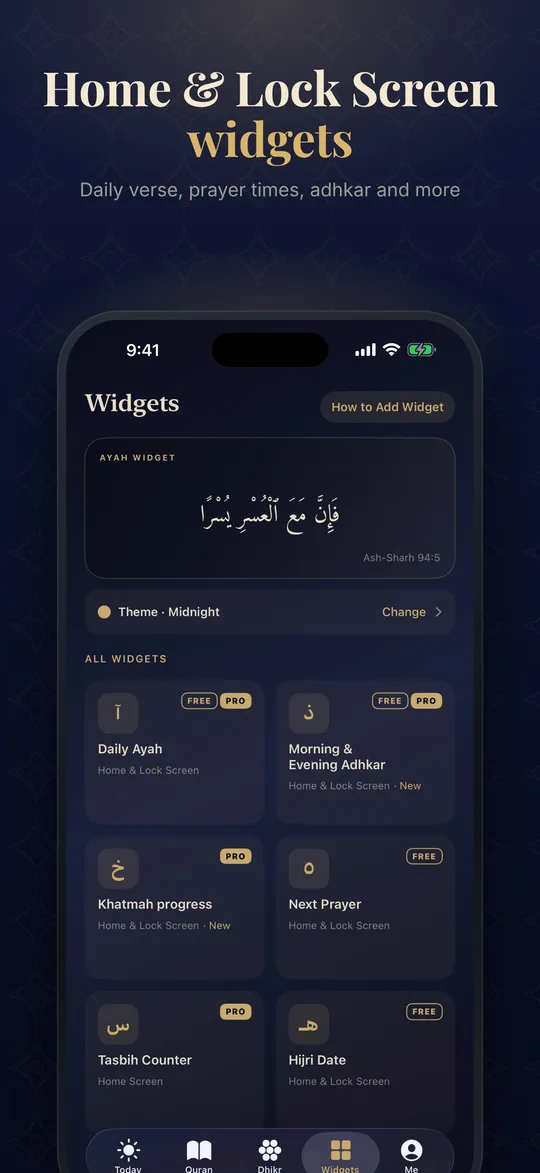
Which Ayah Widget widgets work on the Lock Screen?
| Widget | Lock Screen sizes |
|---|---|
| Daily Ayah | Inline, circular, rectangular |
| Next Prayer | Inline, circular, rectangular |
| Hijri Date | Inline, circular, rectangular |
| Reading Streak | Inline, circular, rectangular |
| Ramadan Countdown | Circular, rectangular |
| Morning & Evening Adhkar (new in 2.0) | Home Screen and Lock Screen |
| Khatmah progress (new in 2.0, Pro) | Home Screen and Lock Screen |
Counting adhkar and tasbih by tapping a widget (iOS 17 and later) is part of Ayah Widget Pro; the Tasbih Counter widget is for the Home Screen. For a free counter in your browser, use the online tasbih counter.
Related
Questions
How do I make an Islamic Lock Screen on iPhone?
On iOS 16 and later, touch and hold the Lock Screen, tap Customize, then Lock Screen. Choose an Islamic wallpaper, then tap the widget area below the clock to add widgets such as a daily Quran verse, the next prayer or the Hijri date.
How many widgets fit on the iPhone Lock Screen?
The area below the clock holds up to four small circular widgets, two rectangular widgets, or one rectangular and two circular. You can also add one small text widget in the date line above the clock.
Can I show Arabic numbers on the iPhone Lock Screen clock?
Yes. While customizing the Lock Screen, tap the clock, then the globe button in the font options, and choose Arabic Indic numerals.
Can I make a Quran verse my wallpaper?
Yes. Create a 9:16 verse image with the free Quran verse card maker, save it to Photos, then choose it as your Lock Screen wallpaper.
Can I have a different Lock Screen for Ramadan?
Yes. iPhone lets you keep several Lock Screens and switch between them with a long press. You can also link one to a Focus, so it appears automatically, for example at night with the Sleep Focus.